
You can access the annotation tool in two main scenarios:
Scenario 1: During a PowerPoint Presentation
- Works for presentations played locally or via screen sharing.
- Tap the buttons on either side of the smart board to bring up the sidebar.
- Tap the Mark icon to start writing or marking directly on the slide.
Tip: In some PowerPoint versions, if slide navigation remains available after adding annotations, your notes will stay visible when moving between slides.
Scenario 2: On Any Other Screen
- Tap the Mark button on the side toolbar.
- The screen will freeze, allowing you to write or draw over the static image.
- Perfect for annotating websites, videos, apps, or any open content on the board.
Annotation Toolbar Overview
Here’s what each tool does:
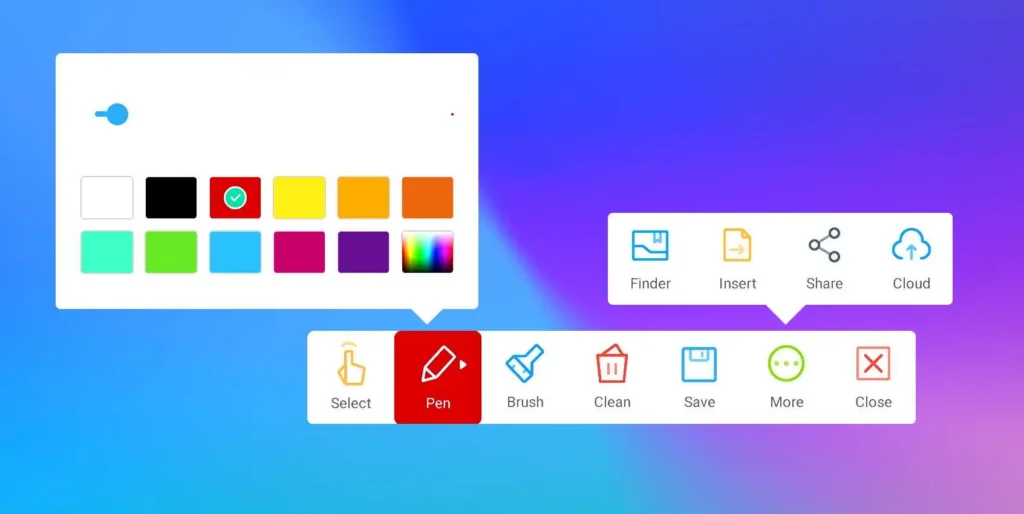
- Pen – Enter writing mode. Tap again to open the pen menu and adjust color or size.
- Brush – Highlight content on the screen.
- Clean – Clear all annotations.
- Save – Save current annotations as a PNG file.
- Insert – Insert the current annotation into a note in the Note App.
- Finder – Open Finder and view the folder where annotation files are stored.
- Share – Generate a QR code so others can download or share the annotation file.
- Cloud – Access your connected cloud drive accounts.
- More – Open the app bar for additional options.
- Close – Exit the Annotation toolbar.
With annotation, your JAV Smart Board becomes a powerful tool for interactive teaching, dynamic presentations, and real-time collaboration.