
The JAV Board 10 Smart Whiteboard comes with a built-in screen recording feature, ideal for saving lessons, meetings, or demo sessions.
Follow these steps:
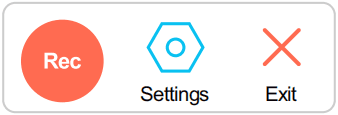
1. Open the sidebar, tap More, and then tap the Screen Recording icon to open the recording toolbar.
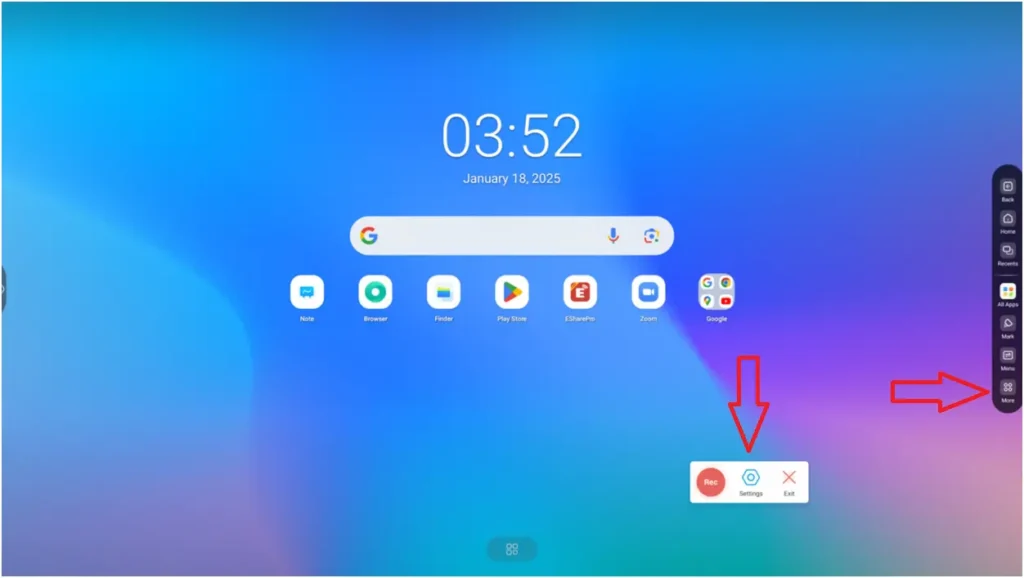
Screen Recording icon:

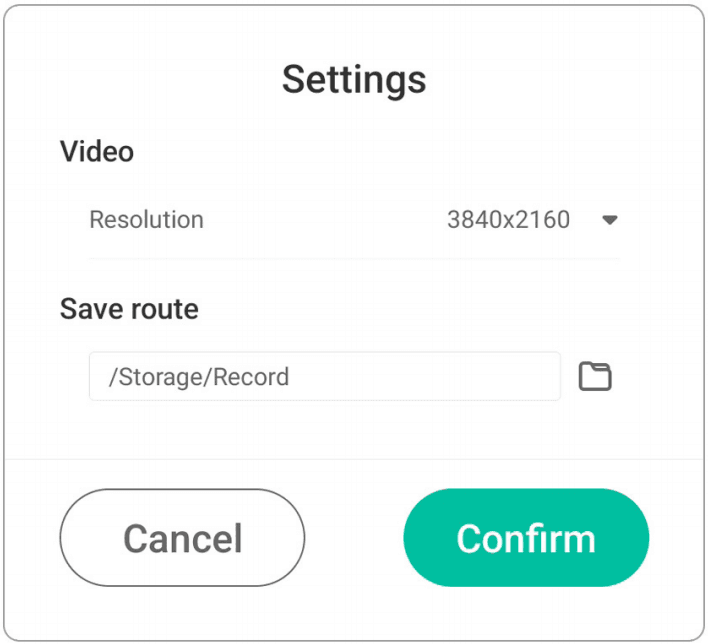
2. Click the Settings icon to:
a. Adjust recording resolution (e.g., HD or standard)
b. Choose a file save location for easy access later
3. Press the Rec button. A 3-second countdown will appear before recording begins.
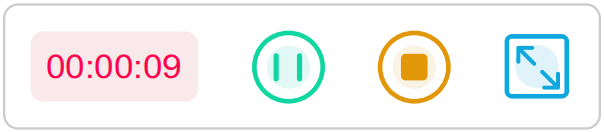
4. During recording, you can click Pause to temporarily stop, and Start to resume. Click Stop to end and save the recording. Click Expand to adjust the recording area.

5. Once finished, your recording can be found in the selected save location.