
In the Notifications menu, you can manage how notifications are displayed and controlled on your JAV Smart Board. Each option provides flexibility to reduce interruptions while ensuring you don’t miss important information.
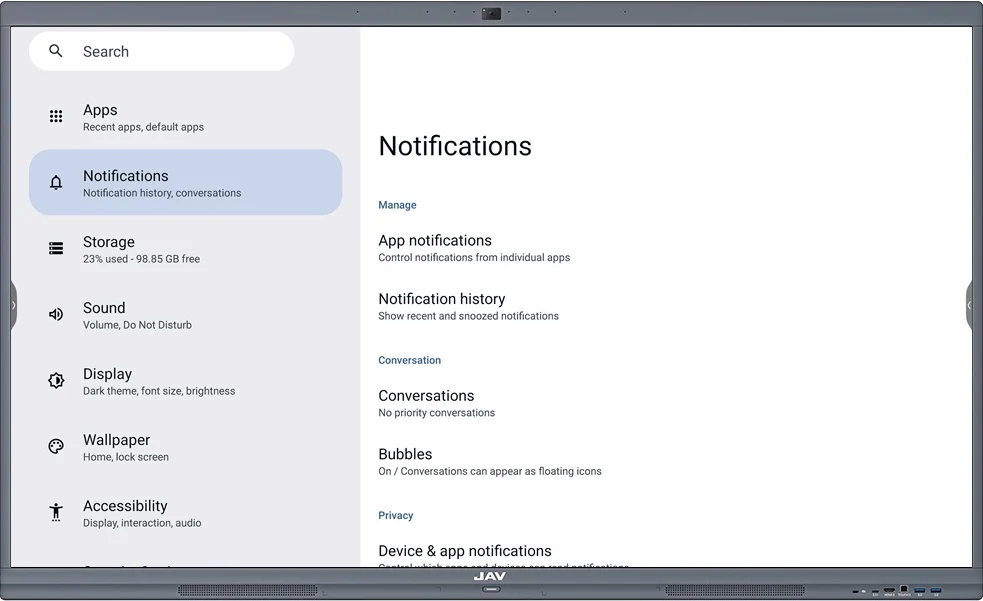
- App notifications
Control notifications from individual apps. Tapping this option will list all installed apps, allowing you to enable or disable notifications for each one. This helps you customize alerts according to your needs and avoid unnecessary distractions. - Notification history
View your recent notifications, including both displayed and snoozed ones. This feature ensures you can easily check back on any alerts you may have missed. - Conversations
If “No priority conversations” is shown, it means no messaging apps currently have notifications set as priority. Once configured, important conversation alerts will appear here for quick access. - Bubbles
When enabled, conversation notifications can appear as floating icons (bubbles) on your screen. This allows you to preview and reply to messages instantly without opening the full app, improving multitasking efficiency. - Device & app notifications
Manage which apps and connected devices are allowed to read your notifications. This helps safeguard your privacy by ensuring only trusted apps can access your information. - Notifications on lock screen
Currently set to “Hide silent conversations and notifications.” This means muted or silent notifications won’t appear when the device is locked, ensuring privacy while still displaying important alerts when you check your screen.