
The JAV Board 10 Smart Board allows you to not only share your PC screen but also control it directly on the board using the touchback feature. To set this up, you’ll need both an HDMI cable and a USB-A to USB-B cable.
⚠️ Important Note:
- Some PCs with USB Type-C ports can share the screen and enable touchback with a single cable. However, the Type-C port on the H10S Pro Smart Board only supports data transfer—it cannot be used for screen sharing.
- For screen sharing with touchback on the JAV Board 10, you must use HDMI + USB-B connections.
What You’ll Need
- HDMI cable
- USB-A to USB-B cable
- A PC or laptop with HDMI output and USB-A port
Step-by-Step Guide
1. Connect the HDMI Cable
- Locate the HDMI output port on your PC.
- Connect one end of the HDMI cable to your PC’s HDMI port.
- Connect the other end of the HDMI cable to the HDMI-IN port on the JAV Board 10.
➡️ This will transmit your PC’s display to the Smart Board.
2. Connect the USB-A to USB-B Cable
- Find the USB-B port on the JAV Board 10 Smart Board(labeled “Touch”).
- Plug the USB-B end of the cable into the JAV Board 10.
- Plug the USB-A end of the cable into your PC.
➡️ This enables the touchback feature, allowing you to control your PC directly from the smart board.
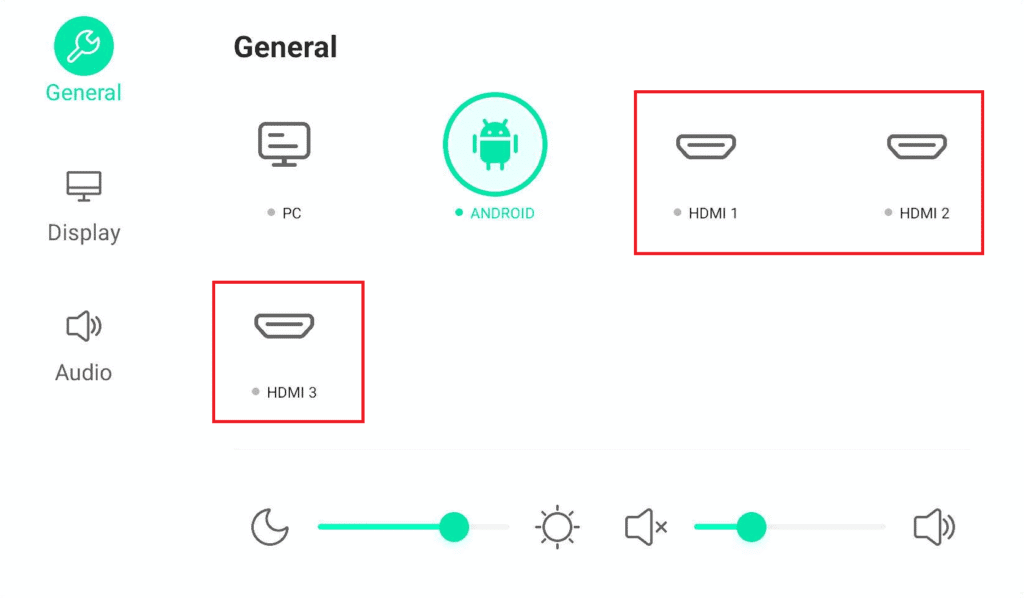
3. Select the Correct Input Source
- On the JAV Board 10, open the sidebar and tap Menu to access the input source menu.
- Select the HDMI input you connected to (e.g., HDMI 1 or HDMI 2).
- Your PC screen should now appear on the Smart Board.
4. Confirm Touchback Functionality
- Once the screen is displayed, try using your finger or stylus on the Board 10 to control your PC.
- If touchback isn’t working:
- Make sure the USB-A to USB-B cable is properly connected.
- Check your PC’s USB settings to ensure drivers are installed.
Quick Troubleshooting
- No Display? Recheck the HDMI connection and input source.
- No Touchback? Verify the USB-A to USB-B connection. Some PCs may require driver updates for touch input.
- Lag or Delay? Use a high-quality HDMI cable and avoid using extension adapters where possible.
✅ You’re all set! You can now share your PC’s screen and use the JAV Board 10 Smart Whiteboard as an interactive display with full touchback functionality.