
Watching TV on your JAV Board 10 Smart Board is simple and convenient. Instead of connecting an external TV box, you can access your favorite streaming services directly through the built-in Android system.
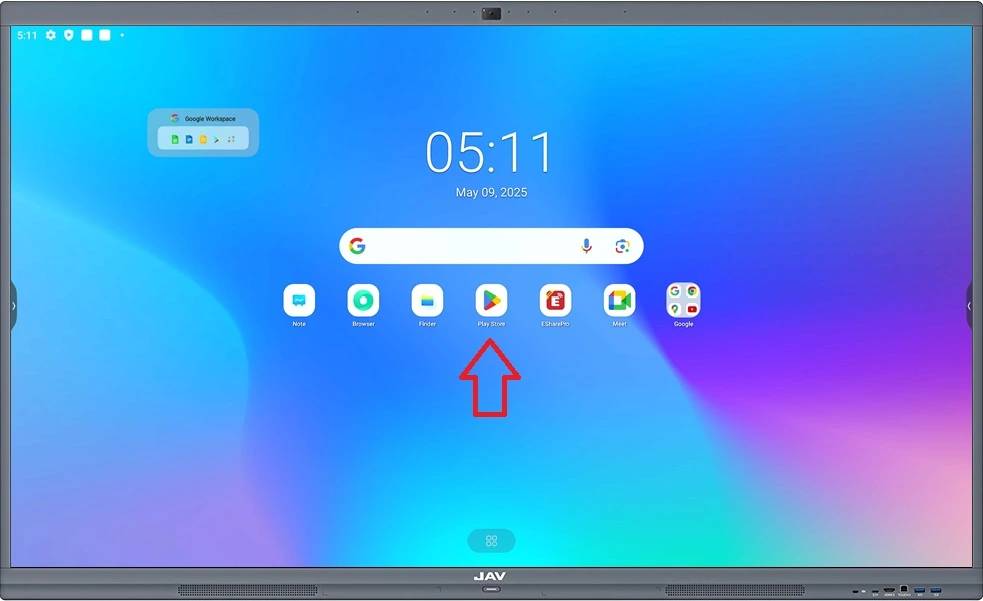
Step 1: Open Google Play Store
On the H10S Pro home screen, tap the Google Play Store icon. Make sure your smart board is connected to the internet.
Step 2: Search for Your Streaming App
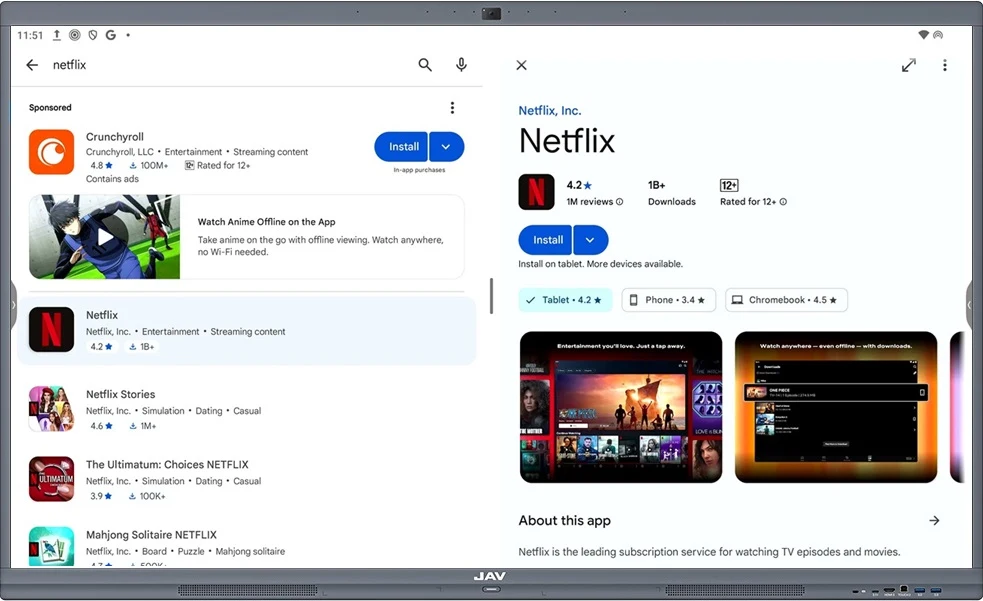
In the Play Store, type the name of the streaming service you want to use, such as:
- Netflix
- Disney+
- Hulu
- Amazon Prime Video
Because the JAV Smart Board 10 is Google EDLA-certified, YouTube comes pre-installed. If you use YouTube frequently, you can launch it instantly from the Home screen or the app drawer — no extra setup required.
Step 3: Download and Install
Tap Install to download your selected app. Once installed, the app will appear on your home screen or in your apps list.
Step 4: Sign In and Start Watching
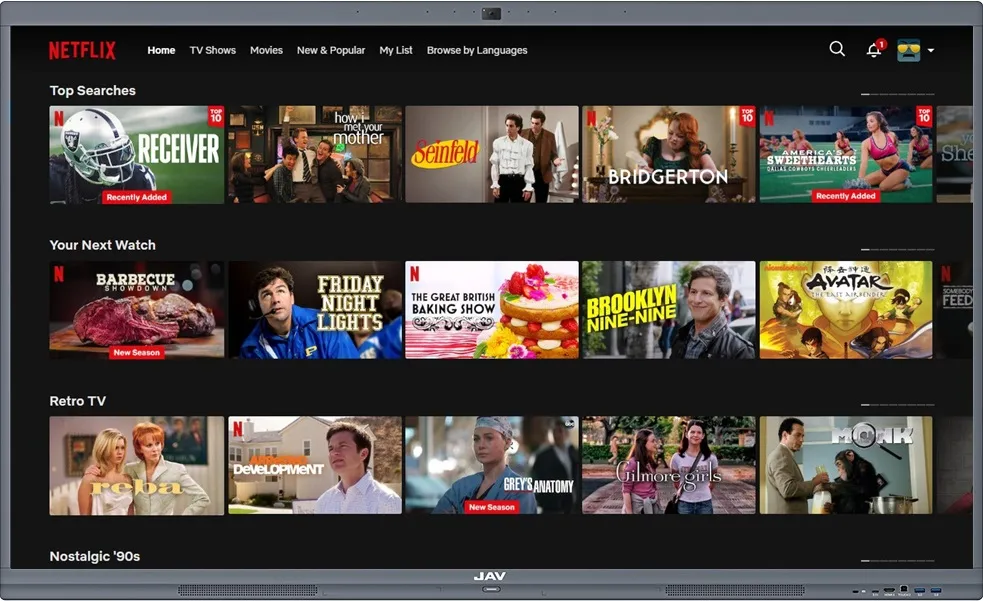
Open the app, sign in with your existing account, and start streaming your favorite TV shows, movies, and videos right on your JAV Board 10 Smart Board.
Tips:
Use the included remote or touch screen to navigate menus smoothly.
For the best experience, ensure you have a stable internet connection.
You can download multiple apps to switch easily between different streaming services.