
The Freeze feature on the JAV Board 10 Smart Board allows you to pause and interact with your current screen content without taking a screenshot or saving an image. This feature is perfect for when you need to focus on a specific part of your screen, zoom in for better detail, or drag the screen to view different areas— all without disrupting your workflow. Here’s how it works and how to use it:
What is the Freeze Feature?
The Freeze feature essentially “pauses” your current interface, much like taking a screenshot, but with the added benefit of being able to zoom in, zoom out, and move around the content on-screen. Instead of saving the screenshot and then opening it in a different app, you can interact with the frozen screen directly. Once you’re done with your interaction, simply exit the Freeze mode to return to your previous activity.
How to Use the Freeze Feature:
Activate Freeze Mode:
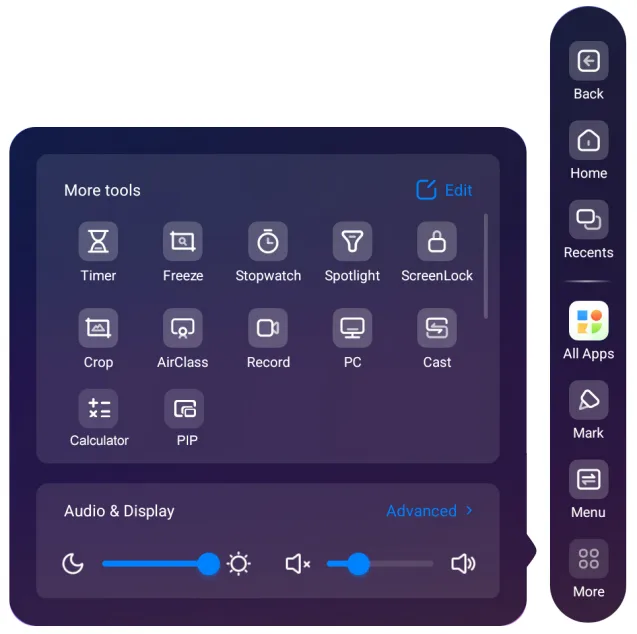
- Call out the menu bar on either side of the screen, and on the sidebar, tap More to see more options, and then tap the Freeze button on the menu. This will immediately freeze the current interface.
Interact with the Frozen Screen:
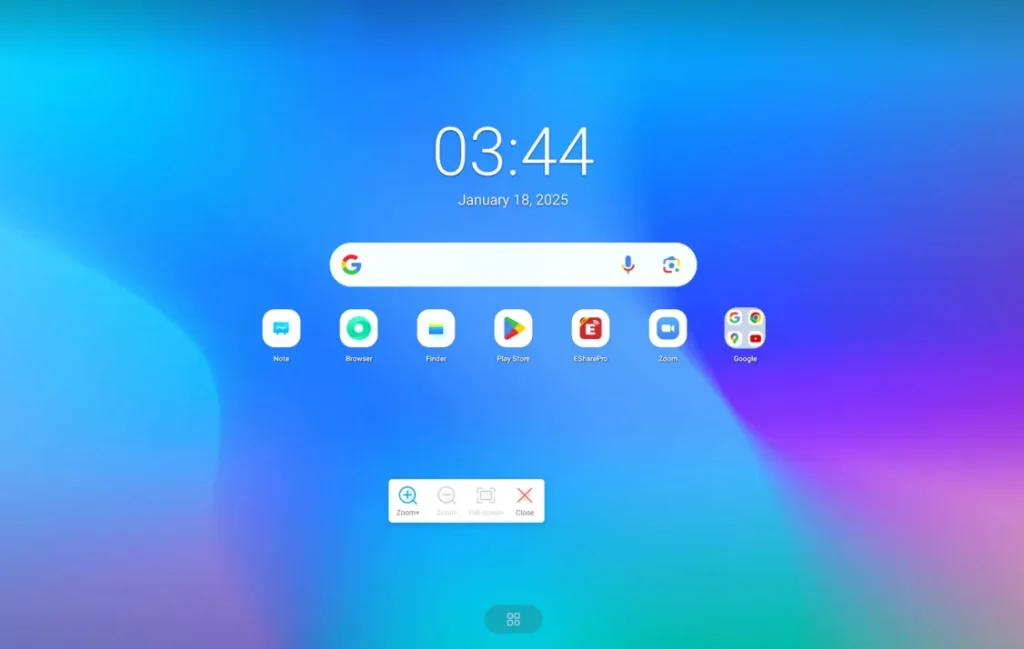
- Once the screen is frozen, you can:
- Zoom In/Out: Pinch the screen with two fingers to zoom in or out.
- Drag: Use your fingers to move around the frozen screen and view different sections.
Exit Freeze Mode:
- When you’re done interacting with the frozen content, simply tap the Close button to return to the last screen you were working on.
Key Benefits of the Freeze Feature:
- No Need to Save Screenshots: Unlike traditional screenshots, you don’t have to save the image or navigate to a photos app to view it. Everything is done within the Freeze window itself.
- Interactive: You can zoom in, zoom out, and move around the interface freely, offering flexibility when viewing specific areas of the screen.
- Easy to Exit: When you’re done, simply exit the Freeze window to continue with your last task without any hassle.
Example Use Case:
Imagine you are teaching a class with the JAV Board 10 smart board and you want to focus on a specific section of a diagram or text. Instead of taking a screenshot, you can simply freeze the screen and zoom into the area of interest. After discussing that section, you can exit Freeze mode and continue with your presentation, without having to save or manage extra images.
The Freeze feature is designed to enhance your workflow by allowing you to interact with your content on the smart board in a way that feels natural and efficient. Whether you’re presenting, collaborating, or teaching, the Freeze feature helps you keep control of your content while minimizing disruptions.
If you have any further questions or need assistance, feel free to contact our support team!