
The JAV Board 10 Smart Board allows you to quickly connect Bluetooth devices such as speakers, keyboards, and styluses. Follow these steps to pair and manage Bluetooth connections.
Pairing a New Bluetooth Device
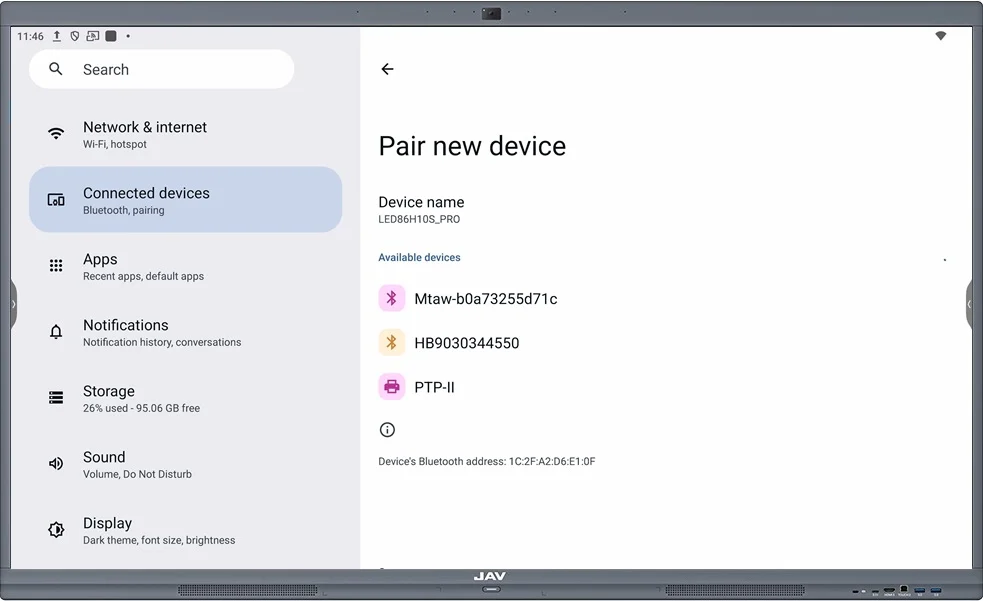
- Open Settings
- From the home screen, tap Settings.
- Select Connected Devices from the menu.
- Start Pairing
- Tap Pair new device.
- Bluetooth will turn on automatically and the Smart Board will begin scanning for nearby devices.
- Select Your Device
- On the smartboard’s Bluetooth search list, look for the name of the device you’re trying to connect.
- Tap the device name to begin pairing.
- Confirm Pairing
- Follow the on-screen prompts to confirm the connection on both the smart whiteboard and the external device.
- Once confirmed, the device will show as Connected.
Managing Paired Devices
- See All Devices
- In Connected Devices, tap See all.
- Here you’ll find a list of all devices that have been paired or saved previously.
- You can select a device to Connect, Disconnect, or Unpair.
- Connection Preferences
- Under Connection preferences, you’ll find additional Bluetooth-related settings, such as visibility and advanced options.
Quick Tips
- Ensure the device you want to pair is in pairing mode before scanning.
- If you can’t find the device, try turning Bluetooth off and on again on both the JAV Board 10 and the external device.
- For best performance, keep devices within 10 meters (33 feet) of the smartboard.
You’re now ready to connect and manage Bluetooth devices on your JAV Board 10 Smart Interactive Display.