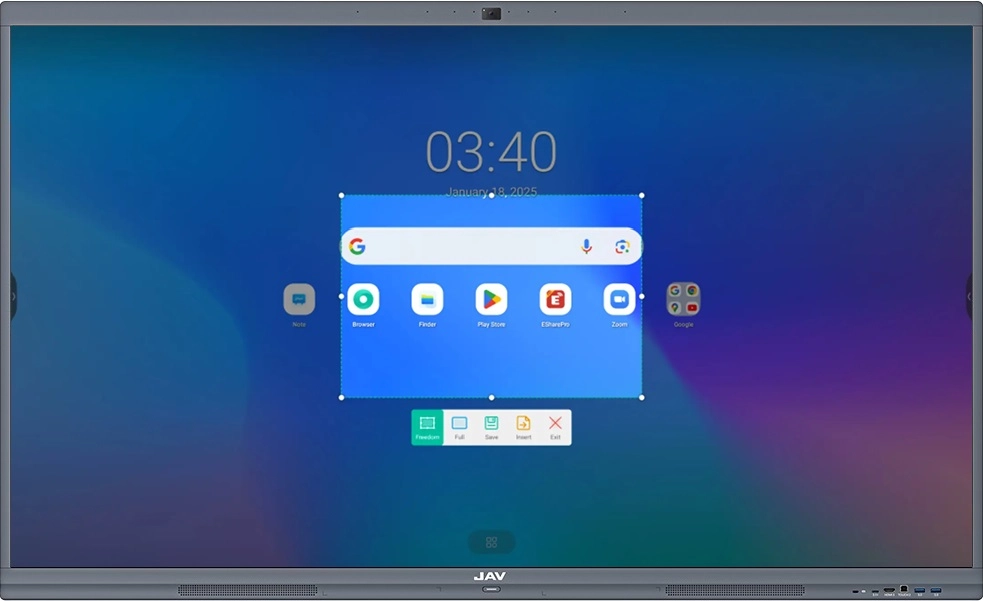
The JAV Smart Board allows you to capture screenshots anytime, on any interface.
You can choose to capture a selected area or the entire screen.
Screenshots can be saved locally, shared instantly via QR code, or uploaded directly to cloud storage services such as Google Drive, Dropbox, and OneDrive.
Here’s how to take a screenshot on a JAV smart board:
- Click the side button to open the sidebar. Sidebars are available on both the left and right, with identical functions, so you can use either one.
- Select More > Screenshot to enter Screenshot Mode and display the Screenshot Toolbar.
- Adjust the position and size of the crop box to capture the desired area, or click Full to capture the entire screen.
- Choose one of the following options:
- Save: Save the screenshot to a local folder or upload it to your preferred cloud service.
- QR Code: Scan the code to download the screenshot directly to your phone.
- Insert: Add the screenshot to a note in the whiteboard app.