
The whiteboard software on the JAV Board 10 is called Note. Within this app, you can easily insert images into your notes to enhance presentations, lessons, or brainstorming sessions.
Steps to add or import images:
- Open the Note app.
- On the toolbar, tap the menu button (nine dots icon) located on the left side.
- From the expanded options, tap Import.
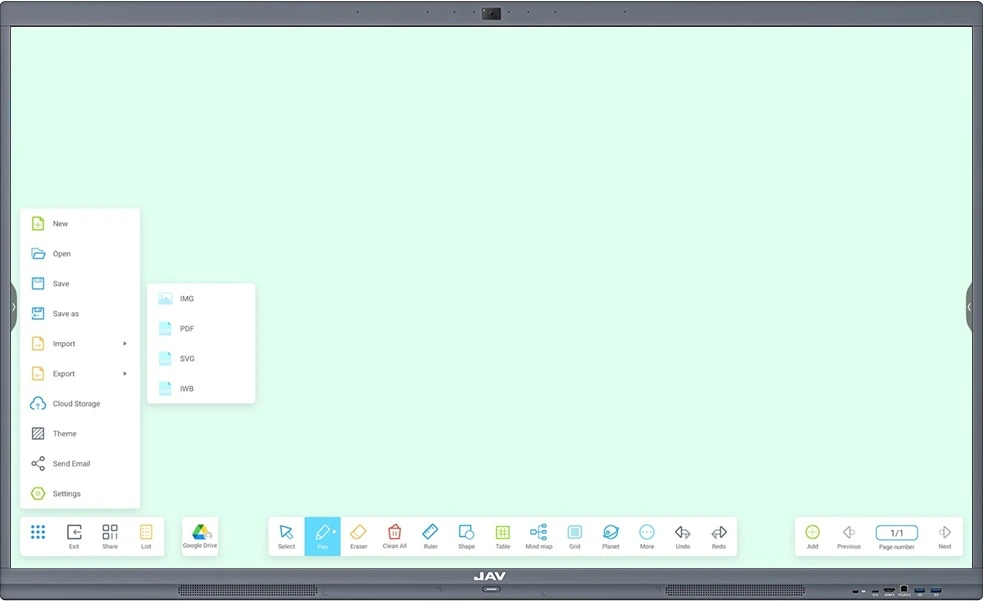
4. A menu will open with different file types. Tap IMG to add an image.
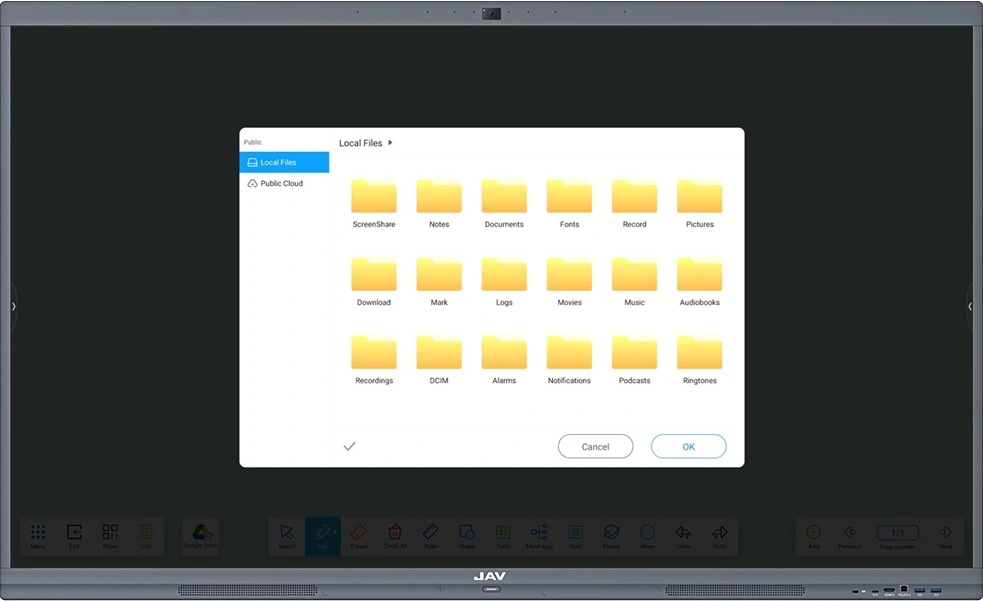
5. In the pop-up window, find the image you want, tap on it, and then tap OK. Your image will now appear on the whiteboard.
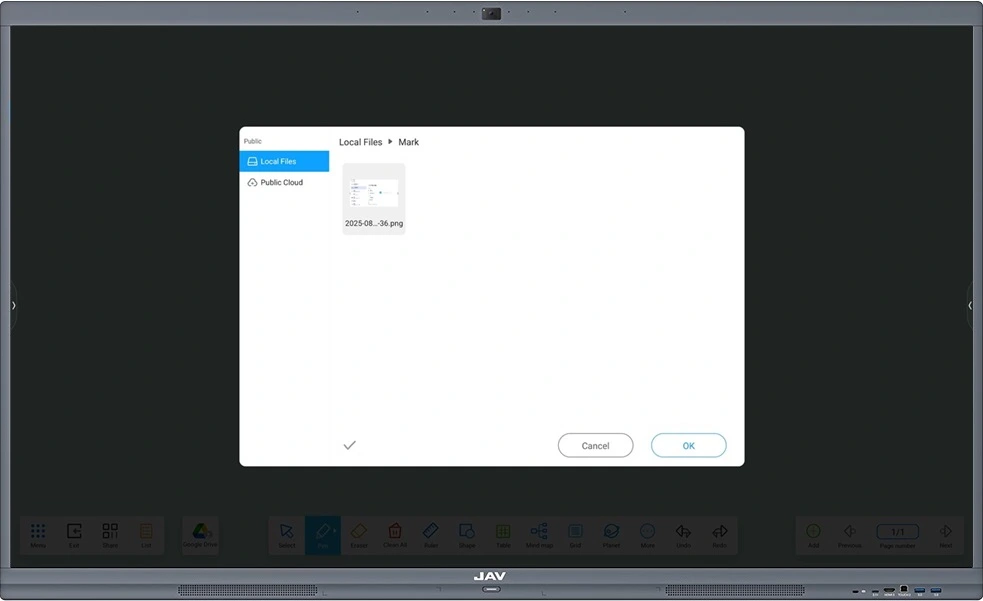
The Note app supports a variety of common image file types, including JPG, JPEG, WEBP, and PNG.