
PowerPoint presentations are a key part of meetings, and JAV Smart Boards make it simple to display and interact with your slides. Below is a step-by-step guide using the JAV H10S Pro Smart Board as an example.
Step 1: Install a Presentation App
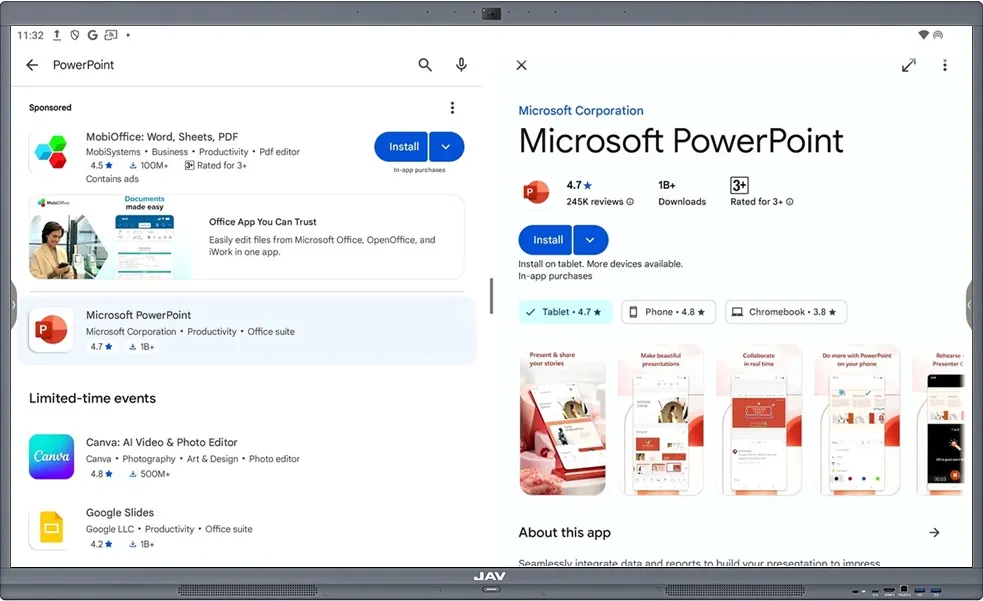
To open PowerPoint files, you’ll need an app such as Microsoft PowerPoint or WPS Office. Since the JAV H10S Pro is Google EDLA-certified, you can download these apps directly from the Google Play Store.
- From the home screen, open Google Play Store.
- Sign in with your Google account (if you haven’t already).
- Search for Microsoft PowerPoint or WPS Office.
- Tap Install to download and install the app.
Step 2: Open Your PowerPoint File
Once the app is installed, you can open and present your slides.
- Navigate to Finder on your smart board.
- Locate the PowerPoint file you want to present.
- Double-tap the file.
- A pop-up window will ask which app to use—select the app you installed (PowerPoint or WPS Office).
- Your presentation will open and you’re ready to present.
With the right app installed, presenting a PowerPoint on your JAV Smart Board is quick and seamless. Whether in classrooms or meeting rooms, you can deliver engaging, interactive presentations with ease.