
Setting up your JAV Smart Board 10 for the first time is quick and straightforward. Follow this guide to get your device connected, configured, and ready for work, teaching, or collaboration.
1. Power On and Connect to the Internet
To begin, make sure your smart board is securely connected to a power source and turned on.
You can connect to the Internet in one of two ways:
- Wi-Fi connection: Go to Settings > Network & Internet > Internet, then choose your Wi-Fi network and enter the password.
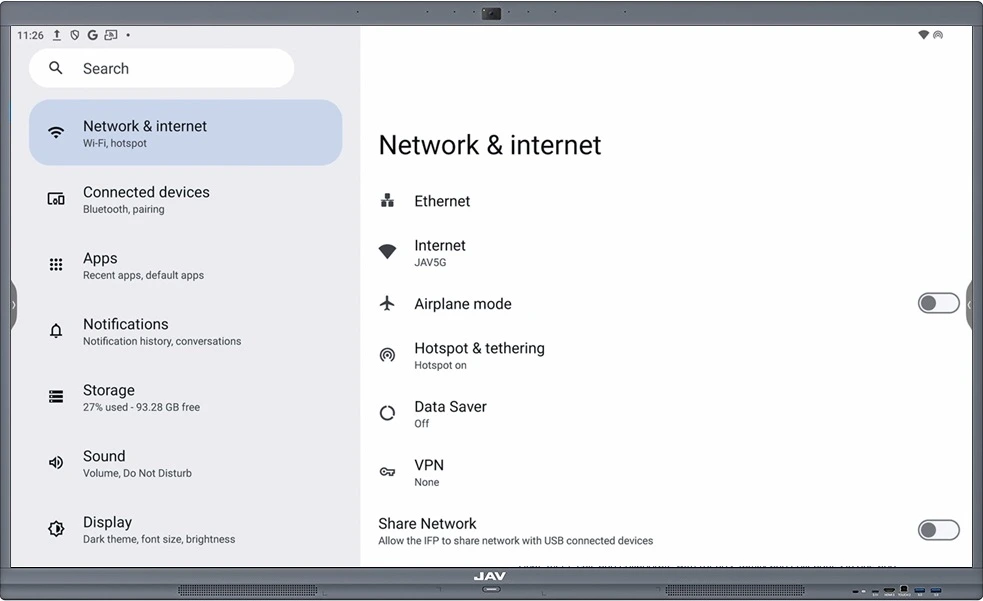
- Wired (LAN) connection: Plug an Ethernet cable into the LAN port on the board. The connection should establish automatically.
A stable Internet connection ensures smooth app downloads, updates, and online collaboration.
2. Sign In with Your Google Account
If you use Google services frequently, signing in with your Google account is highly recommended.
This step allows you to:
- Sync your Google Workspace tools (Drive, Docs, Sheets, Meet, Classroom, etc.)
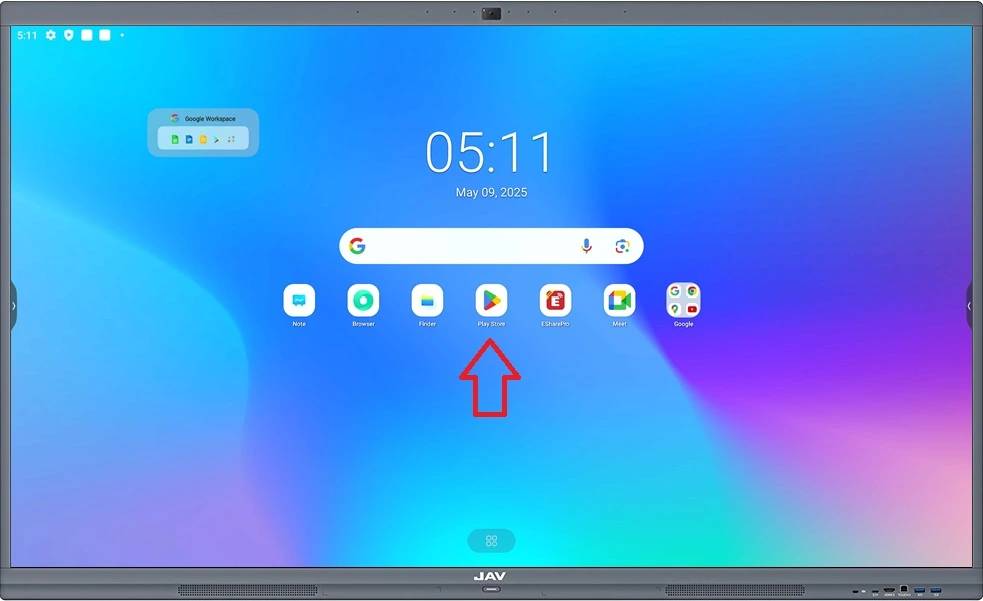
- Access the Google Play Store to download new apps
- Back up and manage your files and settings more easily
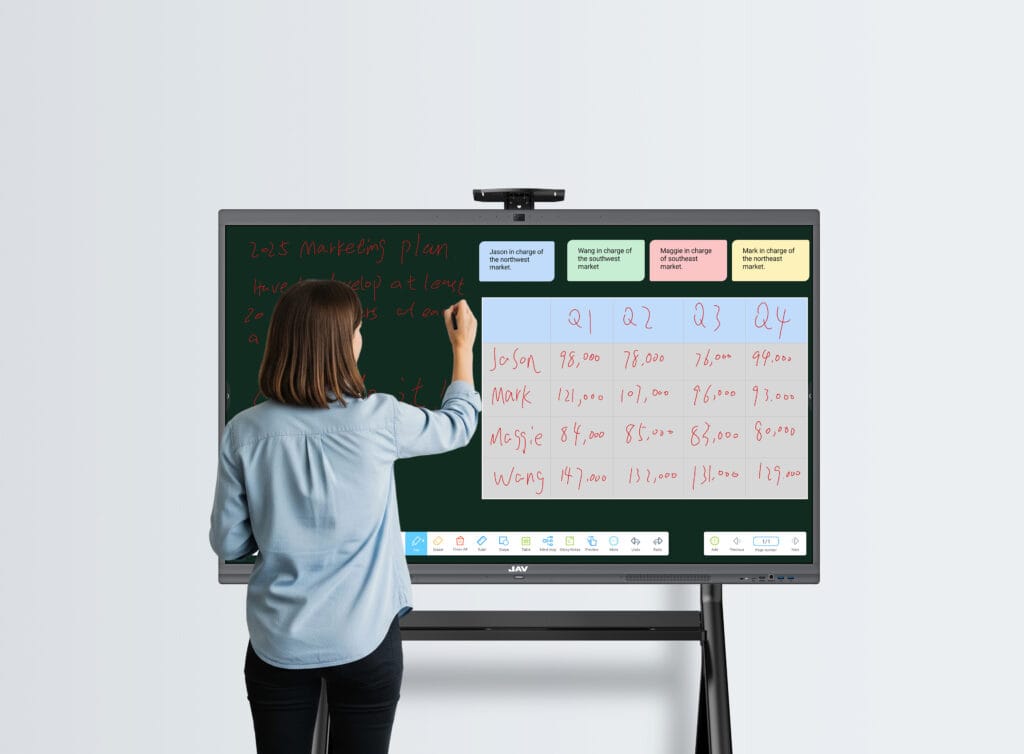
Note: You can still use the JAV Smart Board without signing in to a Google account. The built-in whiteboard app (Note) and file manager (Finder) work independently.
3. Install Essential Productivity Apps
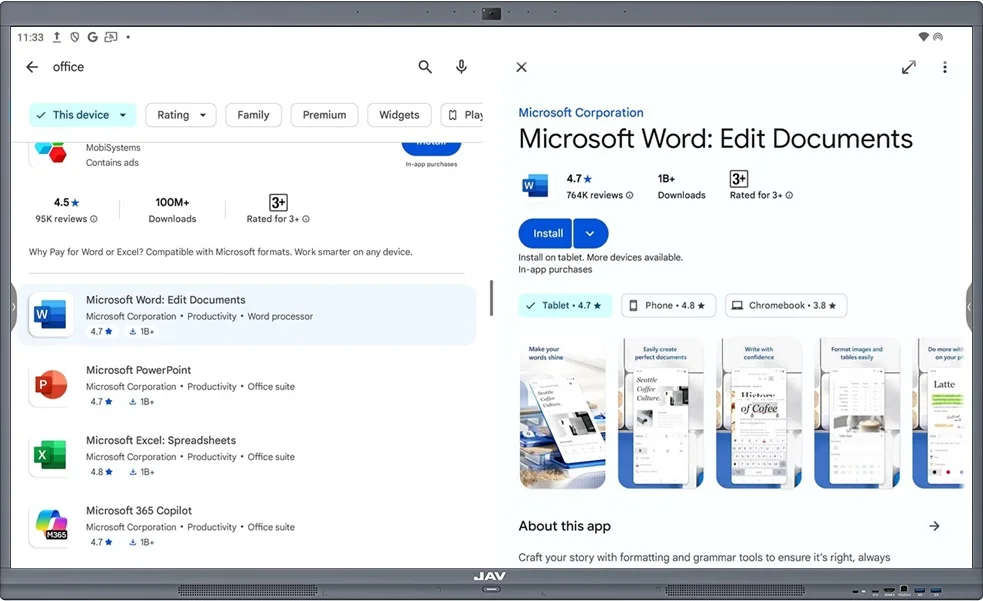
Once connected to the Internet and signed in, visit the Google Play Store to download the tools you need for your work or classroom.
Here are some commonly used apps:
- Office suites: Microsoft Office, WPS Office, or Google Workspace apps (Docs, Sheets, Slides)
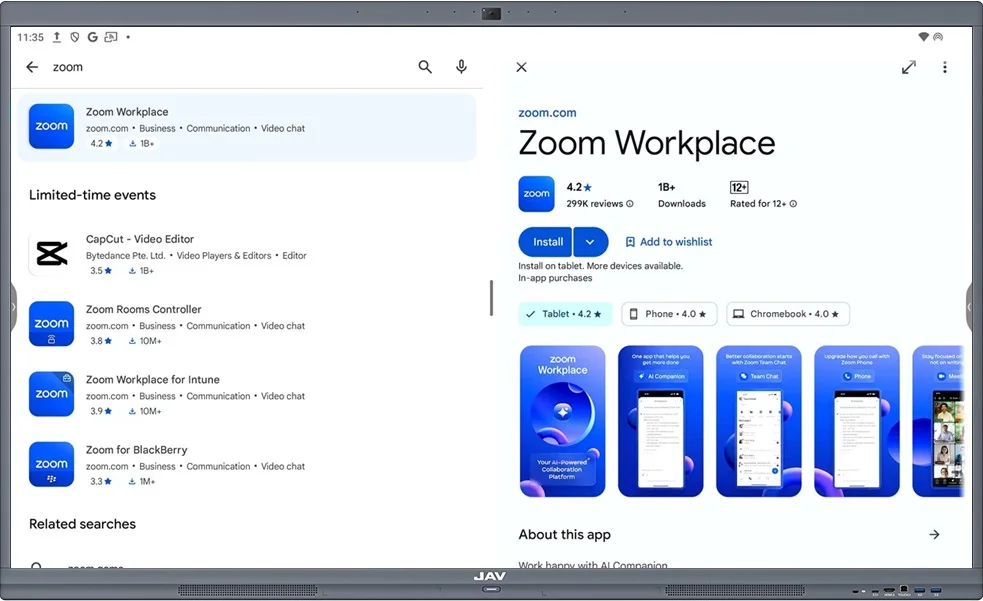
- Communication tools: Zoom, Microsoft Teams, Google Meet
- File-sharing or cloud storage: Google Drive, Dropbox, OneDrive
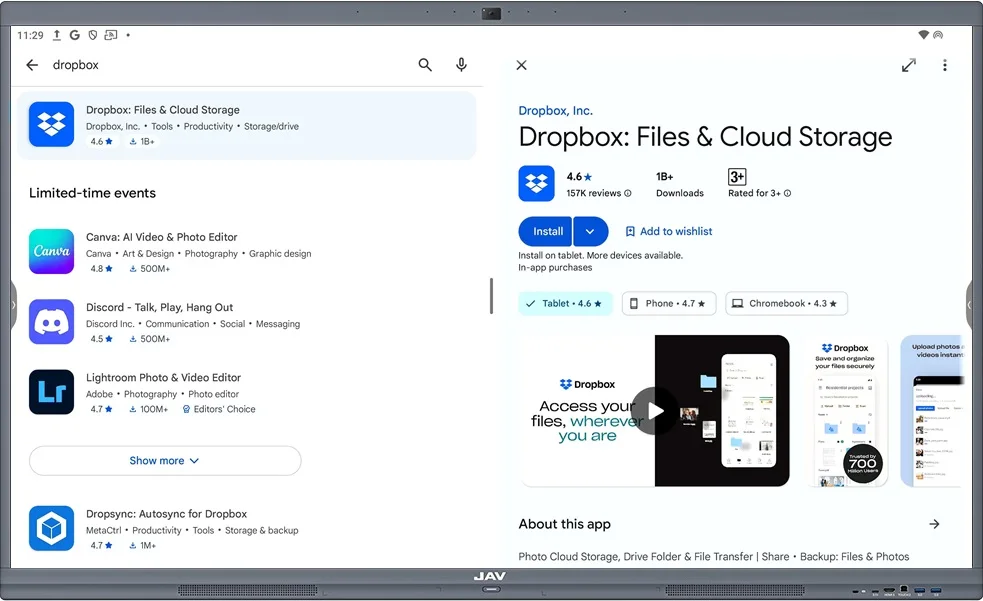
Having these installed early makes your board fully ready for professional or educational use.
4. Set Up Meeting and Collaboration Apps
If your JAV Smart Board 10 will be used for meetings, remote learning, or hybrid collaboration:
- Download your preferred meeting apps from the Google Play Store, such as Zoom or Microsoft Teams. Google Meet is pre-installed.
- Open each app and sign in with your existing account.
- Test the microphone, camera, and screen-sharing features before your first meeting.
This ensures a smooth experience during real sessions.
5. (Optional) Add Cloud Services and File Access
For convenient access to your work documents and teaching materials:
- Download your preferred cloud storage apps—Dropbox, OneDrive, Box, and more. Google Drive comes pre-installed.
- Sign in to sync your files directly to the board
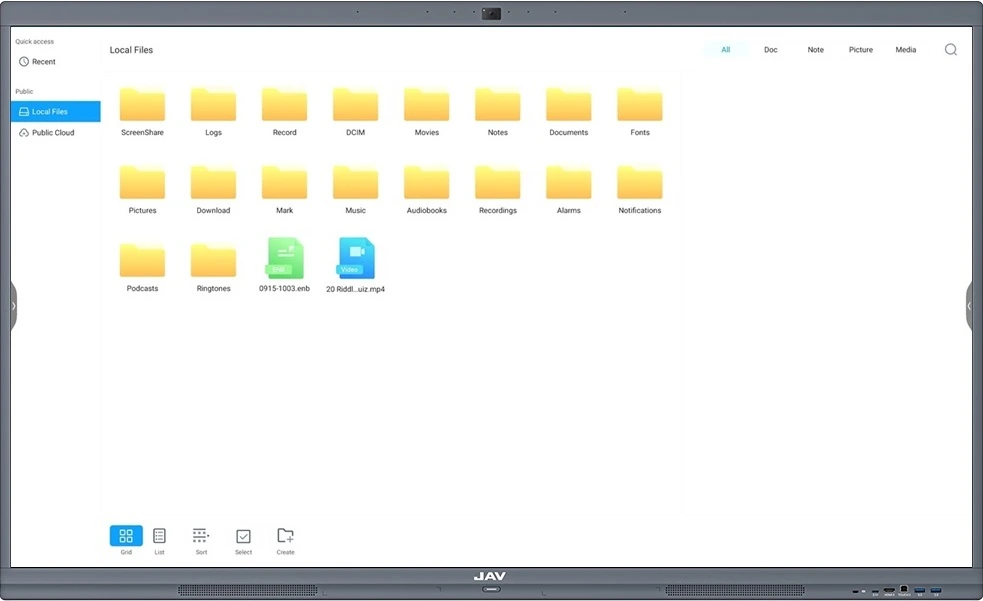
- Use the built-in Finder app to browse, organize, and open your documents easily
6. Explore Built-In Features
Even without extra apps, the JAV Smart Board 10 is ready for immediate use.
Try out its built-in features:
- Note (Whiteboard app): For writing, drawing, and brainstorming sessions
- Finder: To manage files from internal storage or USB drives
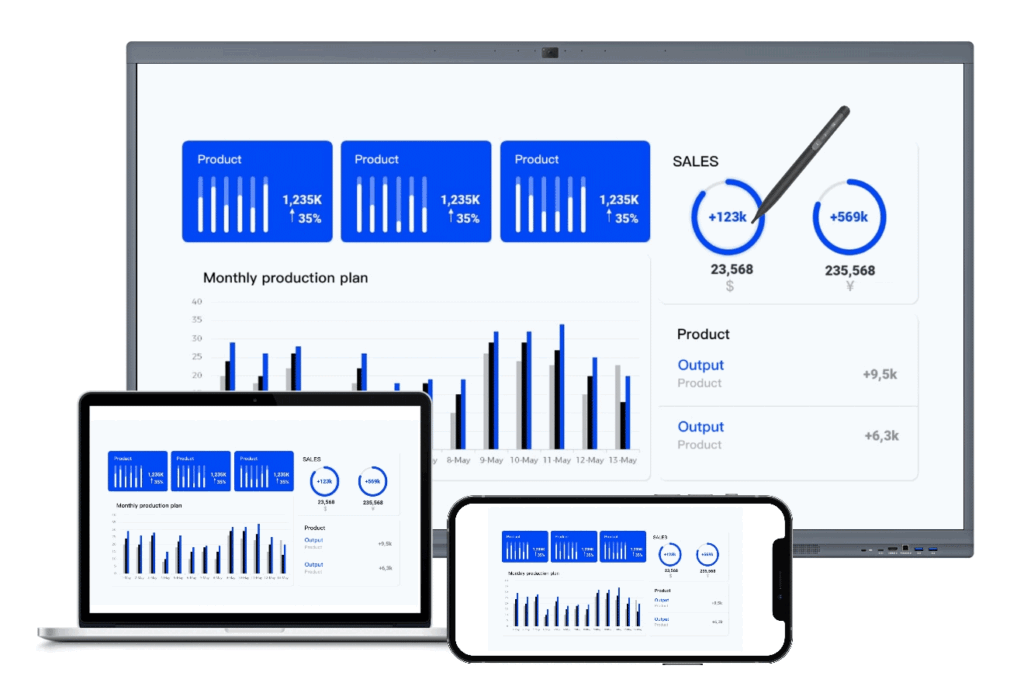
- Screen Mirroring & Casting: To project from laptops, tablets, or phones
7. You’re Ready to Go!
After completing these steps, your JAV Smart Board 10 is fully set up for daily use—whether in classrooms, meeting rooms, or creative spaces.
If you ever need more functionality, simply visit the Google Play Store to download additional apps.
And if there’s a specific feature you’d like to see on future updates, feel free to contact our support team — we’re always improving based on your feedback.