
JAV Smart Boards (EDLA-certified) come with the Google Play Store pre-installed, making it simple to download and use Zoom for video meetings. Follow the steps below to get started.
1. Install Zoom
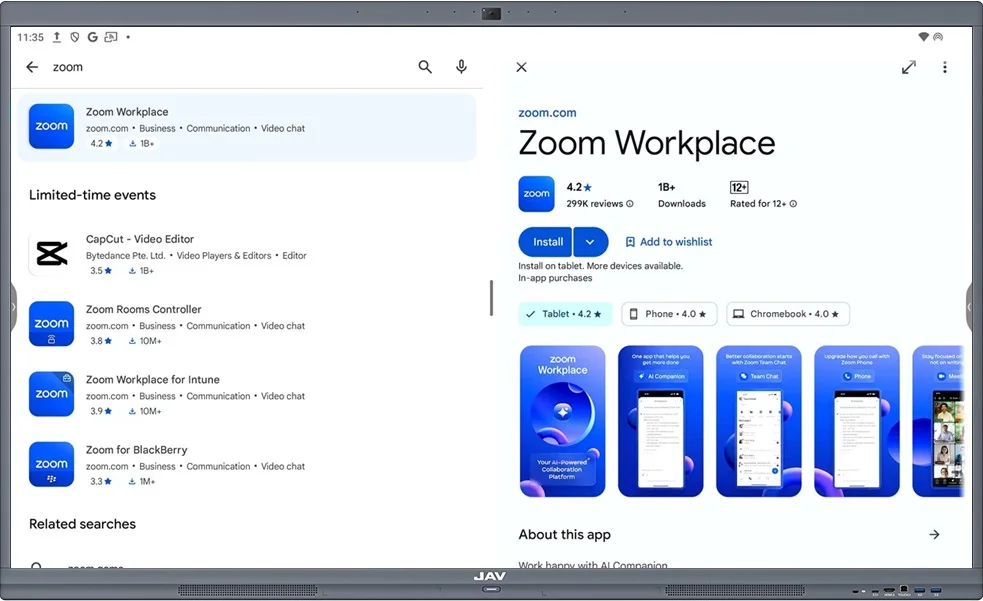
- On your JAV Smart Board, open the Google Play Store.
- Search for Zoom and tap Install.
- After installation, the Zoom icon will appear on both the Home screen and the App drawer.
2. Open and Join a Meeting
- Tap the Zoom icon to launch the app.
- To join a meeting without signing in:
- Tap Join Meeting.
- Enter the Meeting ID and tap Join.
3. Sign In for More Options
For full functionality, sign in with your Zoom account:
- Tap Sign In and enter your Zoom credentials.
- After signing in, you can:
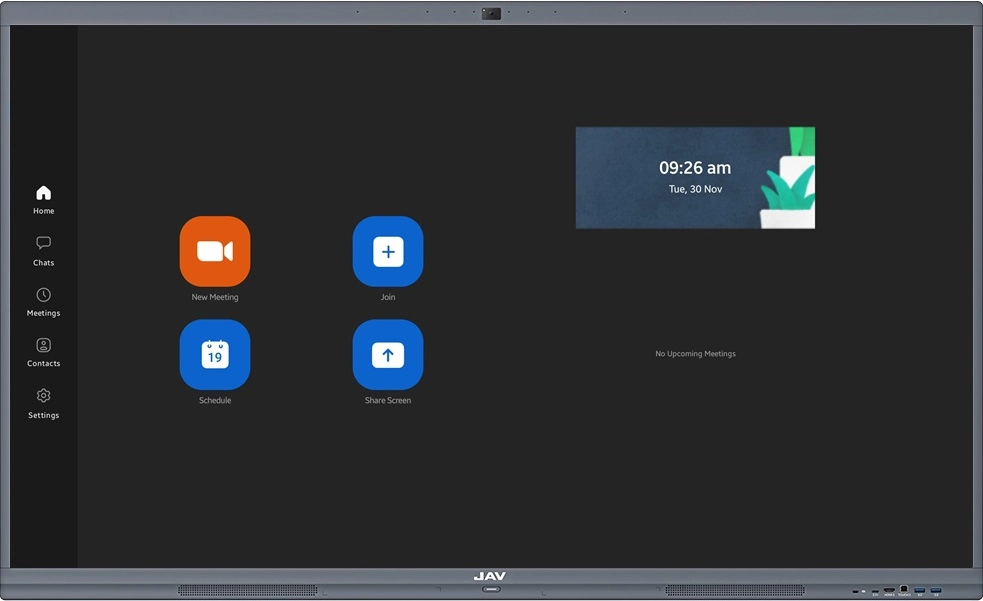
- Start a Meeting
- Join a Meeting
- Schedule a Meeting
4. Sync Your Calendar with Zoom
To see scheduled meetings directly on your Smart Board:
- From the Zoom home page, tap Add a Calendar.
- Select your calendar type (e.g., Google Calendar).
- Tap Next and grant permissions when prompted.
- Sign in with your Google account and allow access.
- Once synced, confirm your calendar connection on the Zoom profile page.
- Restart the Zoom app to display your scheduled meetings on the Home page.
Now your JAV Smart Board is ready for seamless Zoom video meetings, whether you want to join instantly, host a session, or schedule ahead.