
The ESharePro App allows you to wirelessly project content from your mobile phone, tablet, or computer onto a JAV Smart Board. This enables seamless collaboration without cables.
Note: Your mobile device and the smart board must be connected to the same local area network (LAN) for screen sharing to work.
Step 1. Open the ESharePro App on the Smart Board
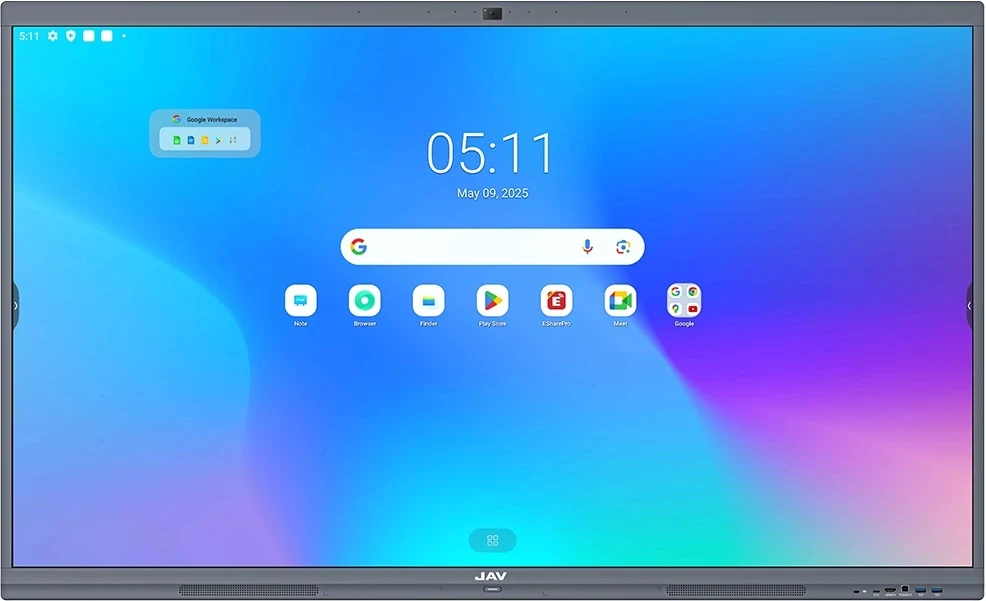
- From the Home page, tap the ESharePro App icon to launch it.
- In the app, tap the “+” icon next to the QR code to enlarge it for easier scanning.
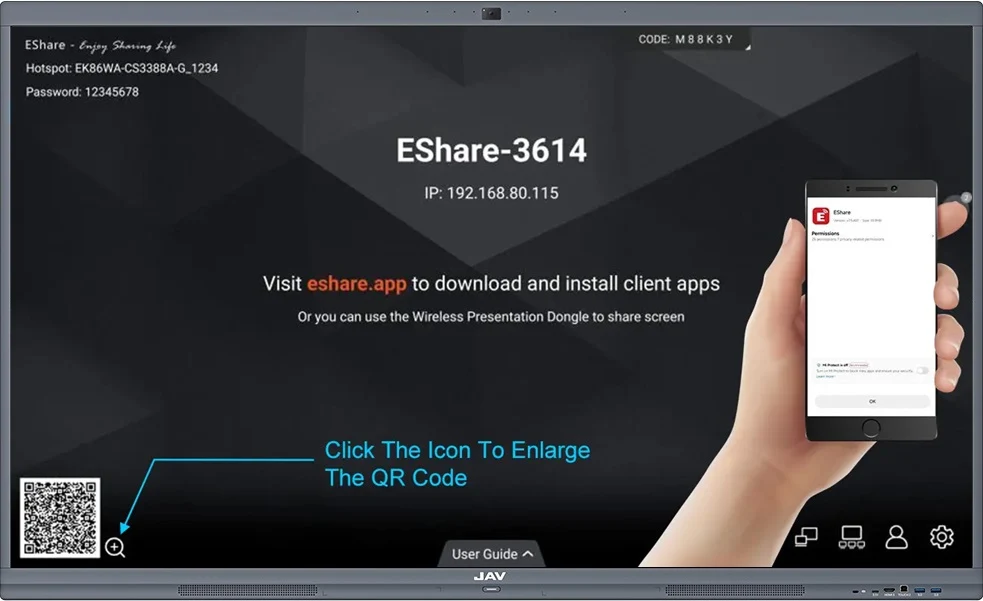
Step 2. Connect Your Mobile Device
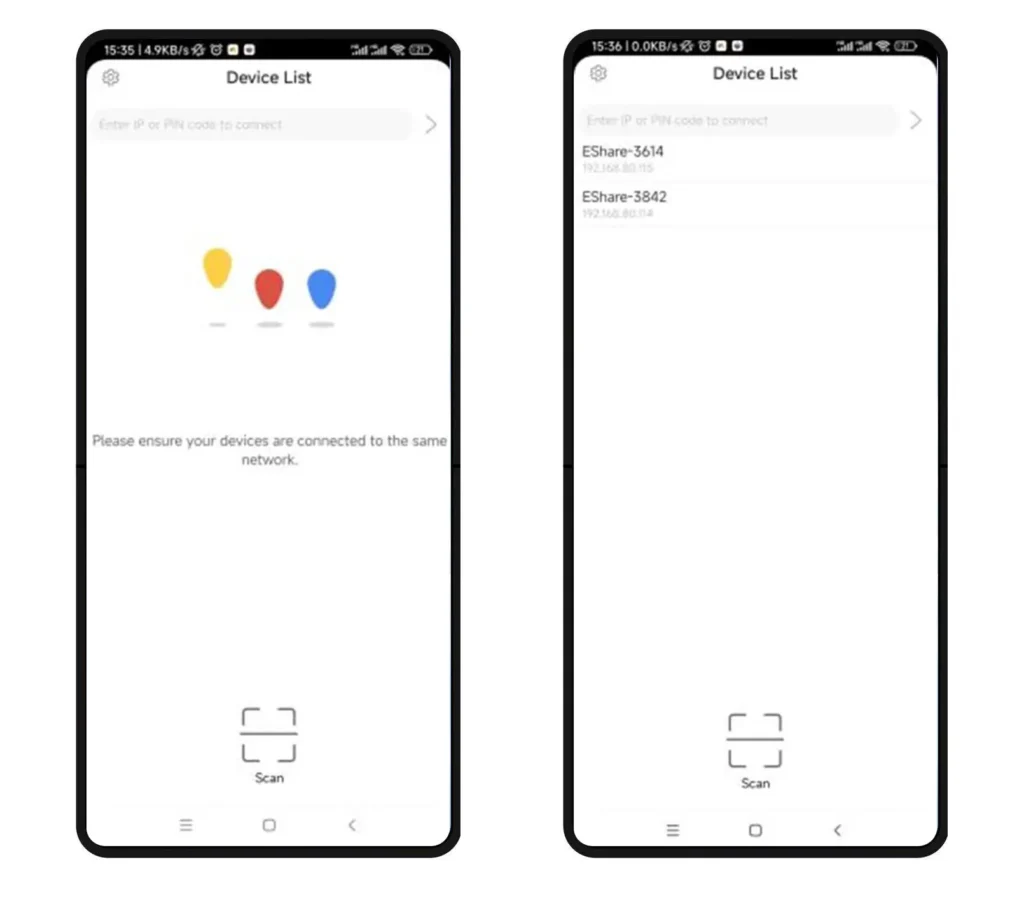
- On your mobile phone, tablet, or computer, open the Eshare app.
- Make sure your device is connected to the same Wi-Fi network as the smart board.
- You can connect by either:
- Scanning the QR code displayed on the smart board, or
- Selecting the device from the list shown in the app.
Step 3. Start Screen Sharing
- Once the connection is established, tap “Screen Share” on your device.
- Your device screen will now be mirrored onto the JAV Smart Board.
Troubleshooting
If screen sharing does not work as expected, try the following:
- Check Wi-Fi connection: Ensure both your device and the smart board are on the same local network.
- Update the app: Make sure you are using the latest version of the Eshare app on your device.
- Restart devices: Reboot your phone/tablet/computer and the smart board, then try reconnecting.
- Reconnect manually: If scanning the QR code fails, select the smart board manually from the device list.
- Close other casting apps: Some casting or mirroring apps may interfere with ESharePro. Close them before retrying.
With the ESharePro app, connecting your devices to the JAV Smart Board is simple and fast. Enjoy smooth, wireless collaboration anytime, anywhere.