
The Spotlight feature on the JAV Board 10 Smart Board allows you to highlight a specific area of the screen, helping your audience stay focused on the most important content. Follow the steps below to use it effectively.
1. Open the Spotlight Tool
- Tap the arrow icon on either side of the screen to open the sidebar.
- Tap More to view additional tools.
- Select Spotlight to activate the feature and reveal the spotlight toolbar.
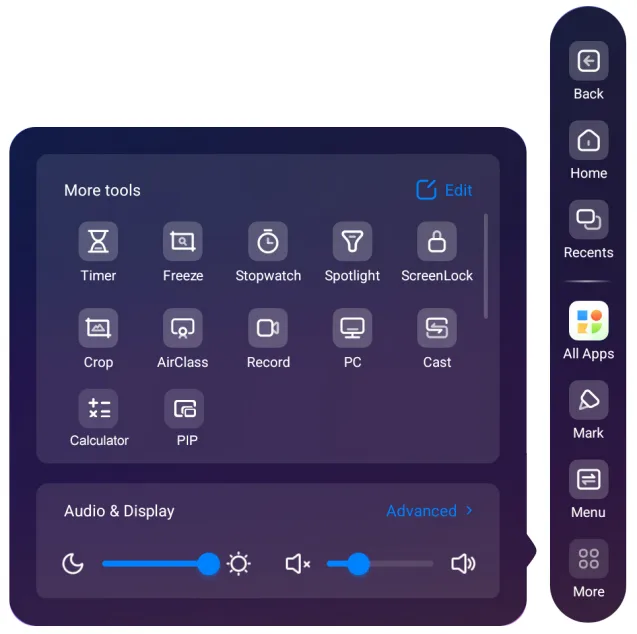
2. Adjust the Spotlight Area
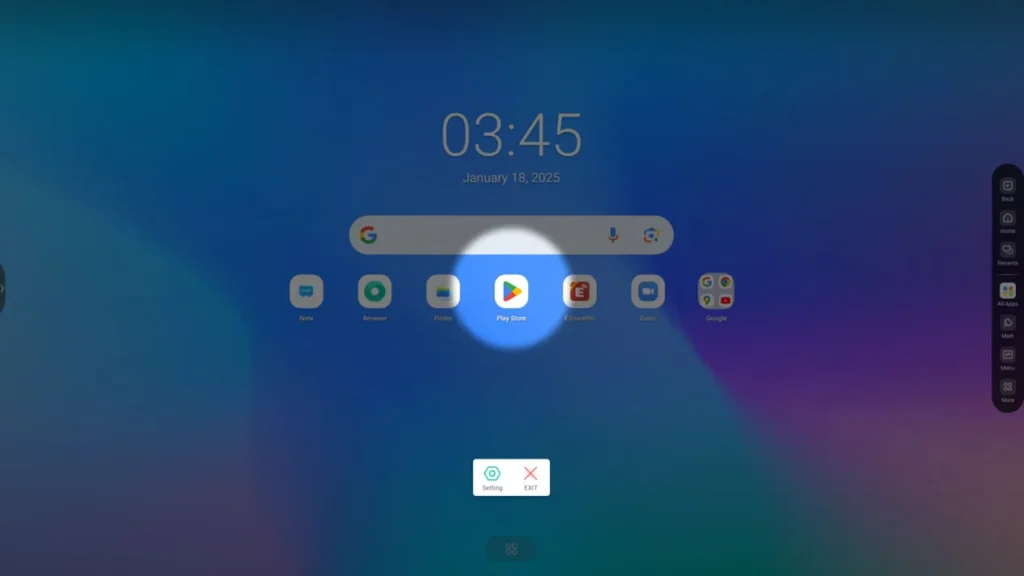
Once activated, the screen will dim, leaving only a circular area illuminated.
- Move the spotlight: Drag the circle to any part of the screen.
- Resize the spotlight:
- Use two fingers to zoom in or out, making the circle larger or smaller, or
- Tap Settings and adjust the size using the zoom slider.
3. Customize the Dimmed Area
You can control how dark the dimmed area appears. Simply press and drag the corresponding brightness bar in Settings to adjust the level of shading.
4. Exit Spotlight Mode
Tap Exit on the toolbar to turn off the feature and return to normal display mode.
The Spotlight feature is a powerful tool for presentations, teaching, and collaboration. It helps direct attention, reduce distractions, and keep your audience focused on key information.