
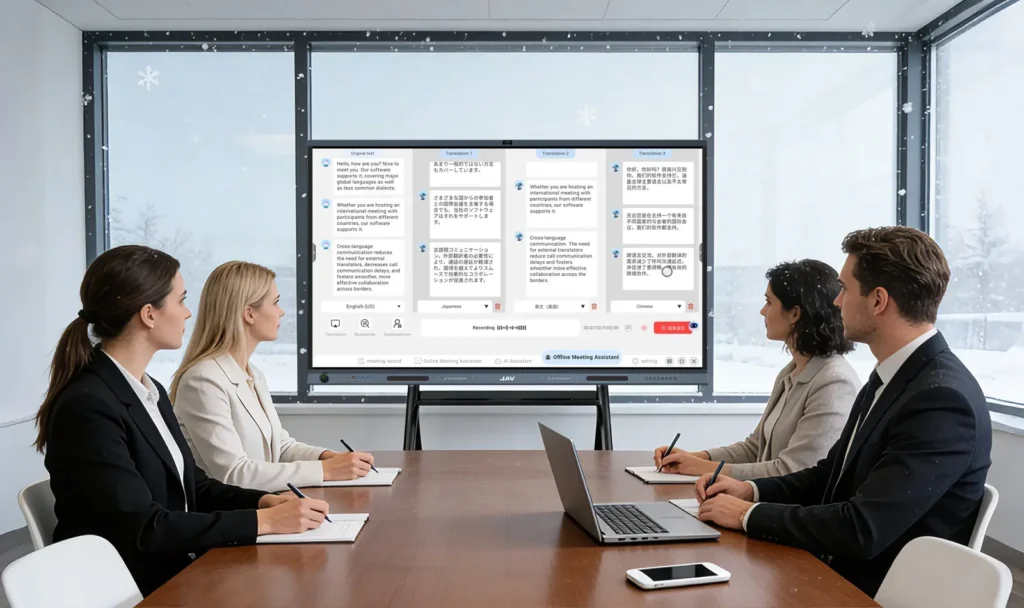
The JAV Board 19 Interactive Display includes an AI Translation feature designed for multilingual meetings. It helps users translate spoken content into other languages in real time, making communication easier for international teams, overseas clients, remote partners, and multilingual classrooms.
This guide explains how to use AI Translation on the JAV Board 19 for multilingual meetings.
What Is AI Translation on JAV Board 19?
AI Translation is part of the AI Efficient Meeting function on the JAV Board 19. AI Efficient Meeting is designed to improve offline meeting efficiency and includes meeting recording and summary, multilingual real-time translation, and live translation and broadcast.
With this feature, users can select a speaking language and target languages, then let the system translate the spoken content automatically during the meeting.
It is useful for:
- International business meetings
- Meetings with overseas clients
- Cross-border team discussions
- Multilingual training sessions
- Education and classroom communication
- Hybrid meetings with participants from different regions
Before You Start
Before using AI Translation, please make sure:
- The JAV Board 19 Interactive Display is powered on.
- The meeting room is quiet enough for clear voice pickup.
- The microphone area is not blocked.
- The correct source language is selected.
- Target languages are selected before the meeting starts.
- Speakers talk clearly and at a normal speed.
For better translation results, avoid background noise and overlapping speech.
Step 1: Open AI Efficient Meeting
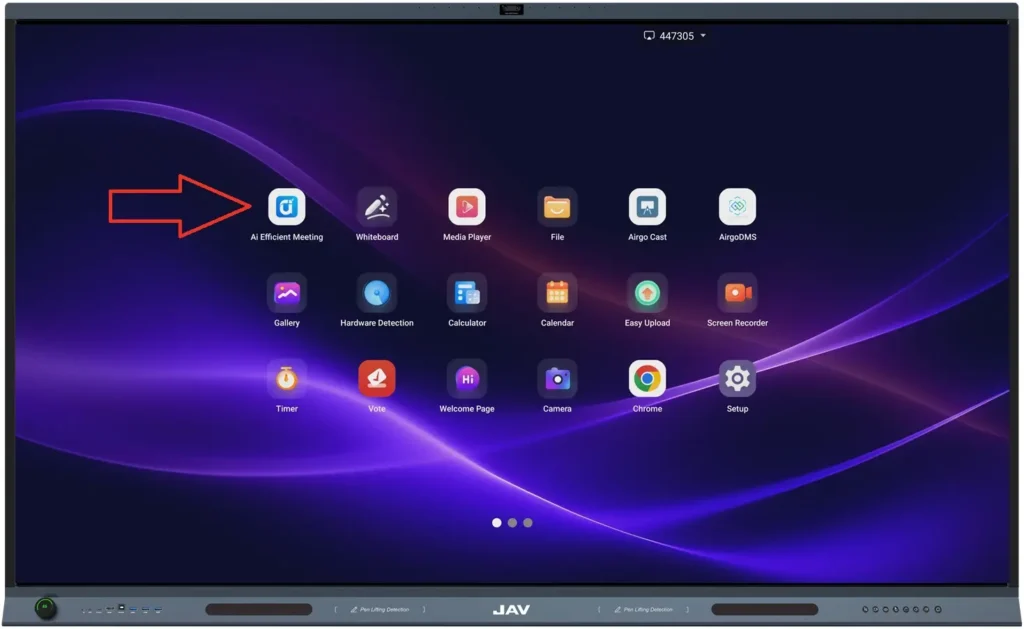
On the JAV Board 19 home screen, open the AI Efficient Meeting app.
This app includes several AI meeting tools, including:
- Meeting Recording and Summary
- Multilingual Real-time Translation
- Live Translation and Broadcast
- Meeting Records
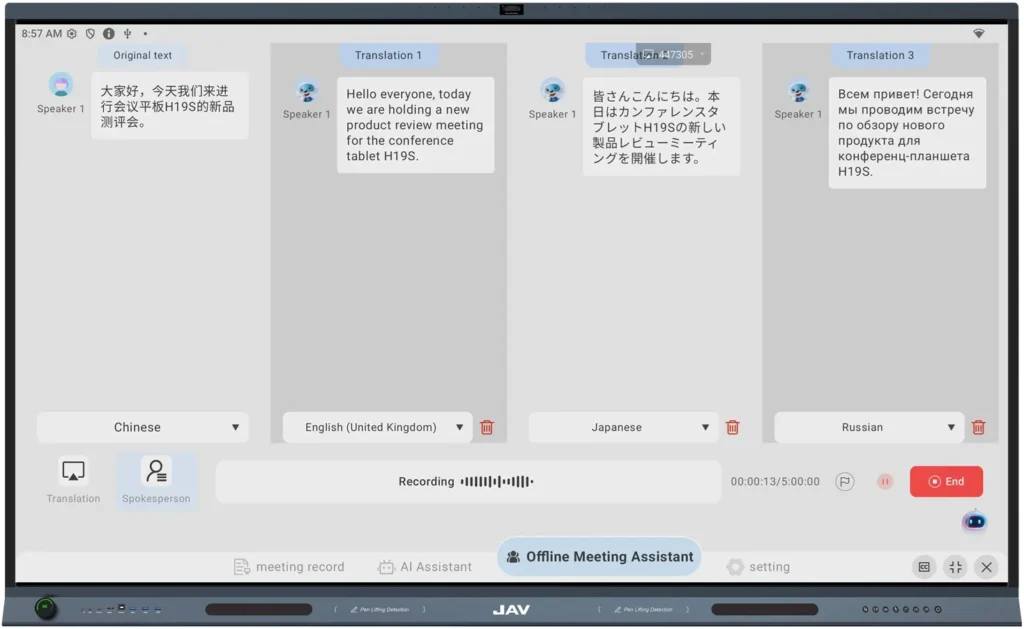
For multilingual communication, choose Offline Meeting Assistant.
Step 2: Select Your Speaking Language
In the translation interface, first select your language in the leftmost window.
This is the language that the speaker will use during the meeting. Choosing the correct source language helps the system recognize and translate the speech more accurately.
Step 3: Select the Target Languages
Next, select the target languages in the other translation windows.
For example, if the speaker uses English, you can select Chinese, Japanese, Korean, Spanish, or other supported languages as target languages, depending on your meeting needs.
Once the translation starts, the JAV Board 19 interactive display will automatically translate the spoken language into the selected target languages.
Step 4: Start Real-Time Translation
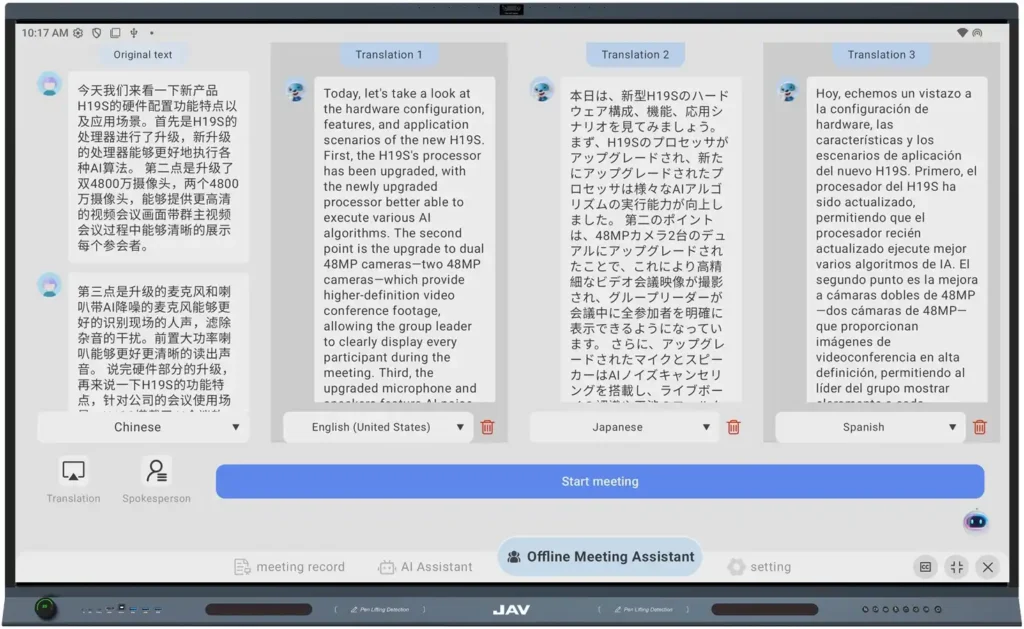
After selecting the source language and target languages, start the translation function.
During the meeting, the JAV Board 19 will recognize the speaker’s voice and display translated content in real time. This allows participants who speak different languages to follow the discussion more easily.
The product document also describes AI Translation as a feature that supports real-time speech recognition and multilingual translation for smoother cross-language communication.
Step 5: Use Live Translation and Broadcast
The JAV Board 19 also supports Live Translation and Broadcast.
This function helps translate speech into another language and broadcast it in real time. It is useful when one speaker needs to communicate with a group of participants who use another language.
You can use this feature for:
- Presentations to international visitors
- Training for multilingual teams
- Classroom explanations
- Product demos
- Cross-border business meetings
Step 6: Review Meeting Records
After the meeting, you can go to the Meeting Record section to check meeting history.
The user manual notes that users can check all meeting history in the Meeting Record section. This helps teams review previous meeting content when needed.
Tips for Better AI Translation
1. Choose the correct source language
Make sure the selected speaking language matches the speaker’s actual language.
2. Speak clearly
Clear speech helps the system recognize words more accurately.
3. Avoid multiple people speaking at the same time
Overlapping speech may affect recognition and translation quality.
4. Reduce background noise
Try to keep the room quiet and avoid noise from phones, air conditioners, or nearby conversations.
5. Keep the microphone area clear
Do not block the microphone area of the smart board during the meeting.
6. Confirm target languages before starting
Select all required target languages before the meeting begins to avoid interruptions.
Troubleshooting
1. The translation is not accurate
Check whether the correct source language is selected. Also make sure the speaker talks clearly and the room is not too noisy.
2. The translated text does not appear
Make sure AI Translation has been started and the target languages have been selected correctly.
3. The system does not recognize the speaker clearly
Reduce background noise, speak closer to the smart board, and avoid several people speaking at the same time.
4. Participants cannot follow the translated content
Try using fewer target languages at the same time and make sure the translated content is displayed clearly on the screen.
5. I cannot find previous meeting information
Go to the Meeting Record section to check meeting history.
When to Use AI Translation
AI Translation is especially helpful when:
- Your team works across different countries.
- You meet with overseas customers.
- You need to explain content to multilingual participants.
- You want to reduce dependence on external translation tools.
- You want a smoother multilingual meeting experience.
Summary
The AI Translation feature on the JAV Board 19 Smart Board helps users communicate across languages during meetings. By selecting the source language, choosing target languages, and starting real-time translation, teams can make international communication clearer and more efficient.
For multilingual meetings, use Multilingual Real-time Translation for live translated text, and use Live Translation and Broadcast when you need to broadcast translated speech to participants in real time.