
The JAV Board 19 Interactive Whiteboard includes a built-in Whiteboard app and Annotation tools for meetings, teaching, brainstorming, and presentations. You can write, draw, highlight key points, insert files or images, erase content, save your work, and collaborate with others in real time.
This guide explains how to use the whiteboard and annotation tools on the JAV Board 19.
Whiteboard vs. Annotation: What Is the Difference?
The Whiteboard app is a blank digital canvas. You can use it to write ideas, draw diagrams, create lesson notes, insert images, add shapes, and manage multiple pages.
The Annotation tool lets you mark directly on displayed content, such as a webpage, presentation, document, or app screen. It is useful when you want to highlight key information during a meeting, class, or group discussion.
How to Open the Whiteboard
From the home screen, tap the Whiteboard app icon to enter the whiteboard.
You can also lift the pen from the pen area to quickly enter the whiteboard or annotation mode, depending on your device settings. The JAV Board 19 manual notes that pen lifting detection can be configured to access the whiteboard or annotation mode.
How to Write on the Whiteboard
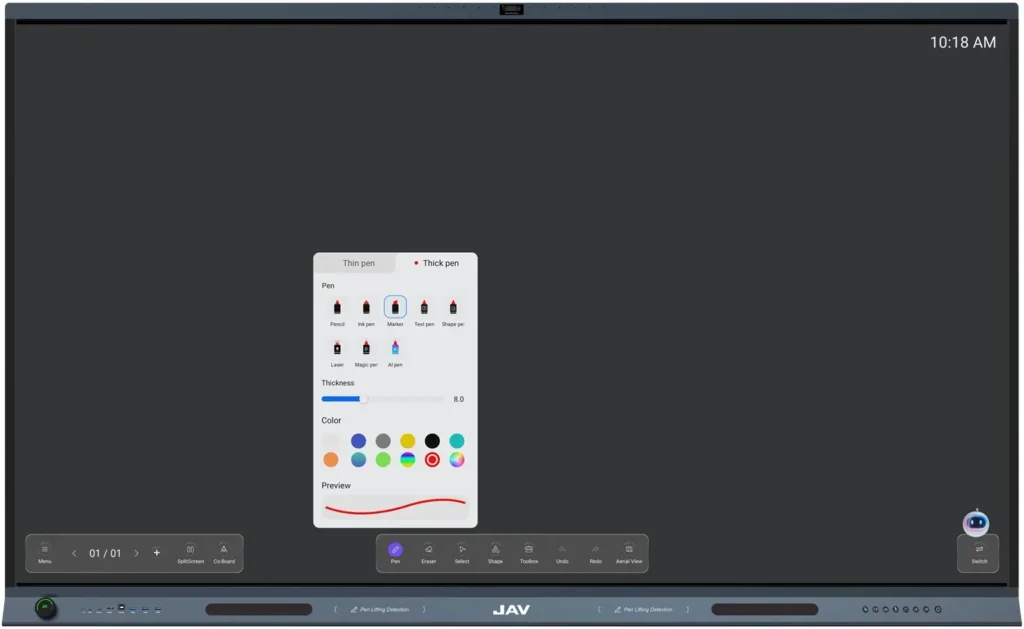
After entering the whiteboard, tap the Pen tool.
You can adjust:
- Pen type
- Pen thickness
- Pen color
The JAV Board 19 Interactive Whiteboard supports multiple pen types, including Pencil, Marker, Ink Pen, Text Pen, Shape Pen, Laser Pen, Magic Pen, and AI Pen. Pen thickness can be adjusted from 4 to 16, and users can choose from preset colors, gradient colors, or custom colors.
Use your finger or the included touch pen to write on the screen.
How to Erase Content on the Whiteboard
Tap the Eraser tool to remove writing or drawings.
The JAV Board 19 interactive whiteboard supports several erasing methods:
- Palm/back-of-hand erasing: erase directly with your palm or the back of your hand.
- Dot Eraser: erase small areas and adjust the eraser size.
- Selection Eraser: erase content inside a selected area.
- Swipe to Clear: clear all content on the page.
How to Select and Edit Objects
Tap the Select tool to choose handwriting, images, shapes, or other elements on the whiteboard.
After selecting an object, you can:
- Move it
- Resize it
- Rotate it
- Change the layer order
- Copy or delete it
- Crop images when available
For handwriting, the selected area can also support AI features, color adjustment, border adjustment, search, copy, layer changes, and deletion.
How to Use Whiteboard AI Tools
The JAV Board 19 includes AI tools inside the whiteboard.
After selecting handwritten text, you can use OCR to convert handwriting into standard text. This helps make notes clearer and easier to read.
You can also use Quiz Master to generate exercises based on selected handwritten content. Users can choose different grades, categories, and question quantities.
How to Insert Images, Files, and Teaching Tools
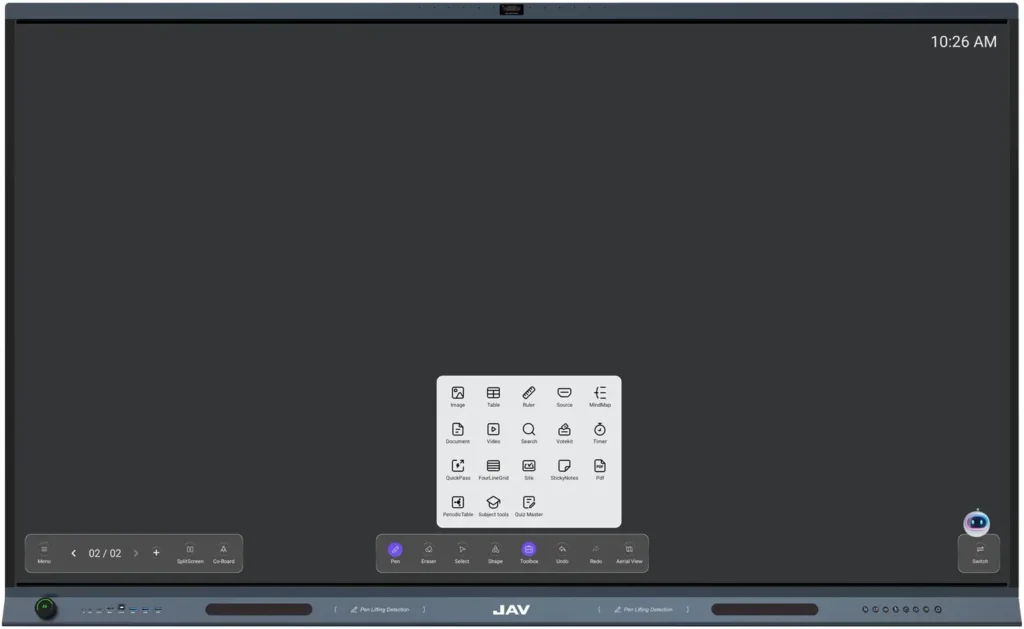
Tap the Toolbox to add more content to your whiteboard.
The toolbox can insert or use items such as:
- Images
- Tables
- Rulers
- Signal sources
- Mind maps
- Documents
- Videos
- Search
- Timer
- Sticky notes
- PDF files
- Periodic table
- Subject-specific tools
- Quiz Master
For example, when inserting images, you can enter the file manager, select one or multiple images, and insert them into the whiteboard.
How to Use Annotation Mode
Use Annotation when you want to write or mark over the current screen content.
After entering annotation mode, a toolbar appears at the bottom-right corner of the screen. The toolbar includes:
- Mode: switch between writing mode and control mode.
- Pen: change brush color and thickness.
- Eraser: adjust eraser size or clear the screen.
- Snapshot: capture the current page as a background for annotation.
- History: view snapshot history.
- Minimize: hide the annotation toolbar.
- Close: exit annotation mode.
This is useful when you are explaining a document, marking a presentation, or highlighting information during a meeting.
How to Save, Open, or Share a Whiteboard on JAV Board 19
The whiteboard menu includes options such as New, Open, Save, Share, Close, and whiteboard settings.
- Tap New to create a new whiteboard.
- Tap Open to open an existing whiteboard file from the file manager.
- Tap Save to keep your current whiteboard content.
- Tap Share when you need to share the whiteboard content.
If the current whiteboard has not been saved, the system will remind you to save it before creating or opening another file.
How to Use Collaborative Whiteboard on JAV Board 19
The JAV Board 19 also supports Collaborative Whiteboard.
You can choose to create or join a collaborative whiteboard. Participants need to enter a collaboration code to join. The collaborative whiteboard can work across different networks and supports real-time synchronization of handwriting, shapes, and other content.
In collaborative mode, users can use tools such as:
- Pen
- Eraser
- Selection tool
- Shapes
- Toolbox
- Undo
- Redo
The creator can also view and manage the member list.
How to Use Aerial View, Undo, Redo, and Layout Switching
For larger whiteboard pages, use Aerial View to see where your current view is located within the full whiteboard. You can move the view by pressing and holding the blue frame or clicking another area in the aerial view.
The whiteboard also supports:
- Undo: undo the last operation, up to 30 steps.
- Redo: restore the last undone operation.
- Switch Layout: change the position of the whiteboard menu and operation area to fit the presenter’s position.
Tips for Better Use
For meetings, leverage the whiteboard to structure ideas, visualize concepts, and capture key discussion points in one place.
In teaching scenarios, combine pen tools, shapes, subject resources, and imported files to create clearer and more engaging lessons.
During presentations, activate annotation mode to highlight key information directly on the screen while keeping your original document or app open.
For collaborative work, enable the shared whiteboard to allow multiple participants to contribute, edit, and exchange ideas in real time.
Troubleshooting
The pen or touch does not work properly
Check whether the touch function is enabled and make sure the touch pen is facing the screen correctly.
I cannot erase content
Make sure you are using the Eraser tool. You can also try palm/back-of-hand erasing, selection erasing, or Swipe to Clear.
I cannot find my previous whiteboard
Use the Open option in the whiteboard menu to enter the file manager and look for saved whiteboard files.
The annotation toolbar is blocking the screen
Tap Minimize to hide the toolbar temporarily.
Collaborative whiteboard cannot be joined
Check whether the collaboration code is correct and make sure the participants have entered the correct code.
Summary
The Whiteboard and Annotation tools on the JAV Board 19 help users write, draw, explain, mark, save, and collaborate more easily. Use Whiteboard for creating content on a digital canvas, and use Annotation when you need to mark directly over documents, presentations, apps, or screen content.