
The JAV Board 19 Interactive Display includes an AI Efficient Meeting feature designed to help users record meeting content, generate meeting summaries, and review meeting history more easily. With AI Meeting Minutes, teams can reduce manual note-taking and focus more on discussion, collaboration, and decision-making.
This guide explains how to use AI Meeting Minutes on the JAV Board 19 Interactive Display.
What Are AI Meeting Minutes?
AI Meeting Minutes is part of the AI Efficient Meeting application on the JAV Board 19. It can record meeting speech, convert spoken content into text, and generate an automatic meeting summary after the meeting ends.
This feature is especially useful for:
- Business meetings
- Project discussions
- Training sessions
- School or classroom meetings
- Internal team reviews
- Multilingual meetings
After the meeting, users can review the generated meeting minutes and summary instead of organizing notes manually.
Before You Start
Before using AI Meeting Minutes, please make sure:
- The JAV Board 19 Interactive Display is powered on.
- The built-in microphone area is not blocked.
- The meeting room is as quiet as possible.
- The correct meeting language is selected before recording.
- Participants speak clearly for better recognition accuracy.
For best results, avoid placing loudspeakers or noisy devices too close to the smart board during the meeting.
Step 1: Open AI Efficient Meeting
On the JAV Board 19 home screen, open the AI Efficient Meeting application.
This application includes several meeting-related AI tools, including:
- Meeting recording and summary
- Multilingual real-time translation
- Live translation and broadcast
- Meeting records
For AI Meeting Minutes, use the Meeting Recording and Summary function.
Step 2: Select the Meeting Language
Before starting the meeting, select the language used in the meeting.
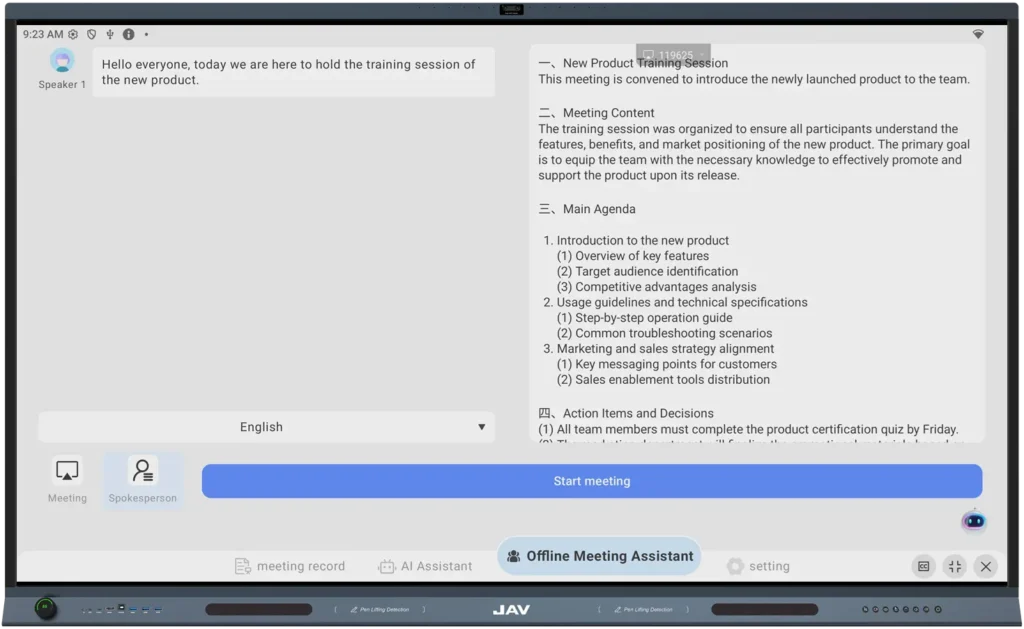
In the AI Meeting Minutes interface, choose your language from the language selection area. The system supports up to 78 languages, allowing users to select the most suitable language for speech recognition.
Choosing the correct language is important because it helps the system recognize speech more accurately and generate better meeting notes.
Step 3: Start the Meeting Recording
After selecting the language, tap Start Meeting.
Once the meeting starts, the JAV Board 19 begins recording the meeting content. The spoken content will be captured and processed by the system.
During the meeting, participants can continue speaking naturally. The smart board will help record the discussion, making it easier to review key points later.
Step 4: End the Meeting
When the meeting is finished, end the meeting recording from the AI Meeting Minutes interface.
After the meeting ends, the system will generate:
- Meeting minutes
- A meeting summary
- Key discussion content
This helps users quickly understand what was discussed without manually sorting through the full conversation.
Step 5: Review the Auto-Generated Meeting Minutes
After ending the meeting, check the generated meeting minutes and summary in the right-side area of the interface.
The summary can help users quickly review:
- Main discussion topics
- Important conclusions
- Follow-up items
- Key information shared during the meeting
This is useful for both participants and people who could not attend the meeting.
Step 6: Check Meeting History
To review previous meetings, go to the Meeting Record section.
In this section, you can check meeting history and find previous meeting records. This helps teams keep track of past discussions and review meeting content when needed.
Tips for Better AI Meeting Minutes
To improve the quality of AI-generated meeting minutes, follow these tips:
- Choose the correct language before starting
Make sure the selected language matches the main language used in the meeting. - Speak clearly
Clear speech helps the system capture more accurate meeting content. - Reduce background noise
Avoid unnecessary noise from phones, air conditioners, or nearby conversations. - Do not block the microphones
Keep the microphone area clear during the meeting. - End the meeting properly
Make sure the meeting is ended correctly so the system can generate the meeting minutes and summary.
Fehlerbehebung
1. No meeting minutes are generated
Make sure you have tapped Start Meeting before the discussion begins. If the meeting was not started, the system may not record the content.
2. The meeting summary does not appear
Check whether the meeting has been ended properly. The meeting minutes and summary are generated after the meeting ends.
3. The recognized text is inaccurate
Please check whether the correct language was selected before starting the meeting. Also make sure participants speak clearly and reduce background noise in the room.
4. I cannot find previous meeting records
Öffne die Meeting Record section in AI Efficient Meeting. This section allows you to check meeting history.
5. Can I use AI Meeting Minutes for multilingual meetings?
Yes. The AI Efficient Meeting application also includes multilingual real-time translation. For multilingual discussions, select the appropriate language settings before starting the meeting.
When to Use AI Meeting Minutes
AI Meeting Minutes is useful when you need to:
- Record important discussions
- Summarize meeting results
- Share meeting outcomes with absent team members
- Review decisions after a meeting
- Reduce manual note-taking
- Improve meeting follow-up efficiency
With the JAV Board 19 Interactive Display, users can make meetings more efficient by combining discussion, recording, summary, and review in one smart meeting display.
Zusammenfassung
The AI Meeting Minutes feature on the JAV Board 19 Interactive Display helps users record meeting content and generate automatic meeting summaries. By selecting the correct language, starting the meeting recording, and reviewing the generated summary after the meeting, teams can save time and keep meeting information organized.
For previous meeting content, users can also check the Meeting Record section to review meeting history.